Signing in and Opening a Project
Kryptos requires a registered account to operate under any of its available license modes. For details of the available license modes, including Commercial, Trial, and Read only, please refer to Licensing Modes.
To create a registered account, please fill in the Contact form on the Kryptos website to submit your request. {{TODO: add the link to the Contact form on the website}} Once your request has been reviewed and approved, you will receive instructions to activate your Kryptos account.
This page covers signing in with your Kryptos account and creating / opening a project.
Signing in
Kryptos requires you to sign in to your registered account to use the software.
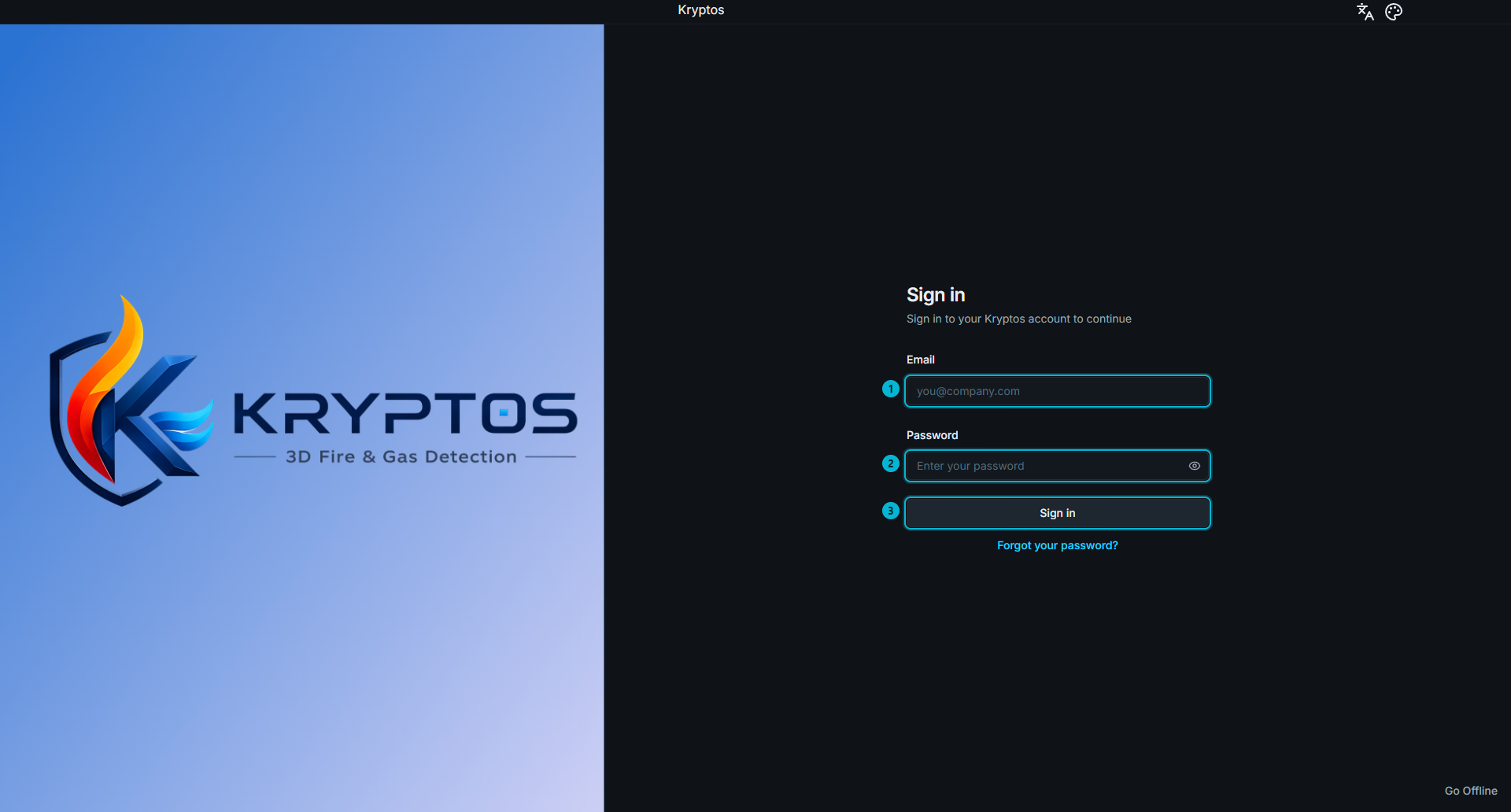
- Email — Enter the email address associated with your Kryptos account.
- Password — Enter the password for your account.
- Sign in — Authenticates your account and opens the Home screen.
Forgot your password? Click Forgot your password? to request a password-reset link. For security reasons, the confirmation message is the same whether or not an account exists for the email address entered. If you do not receive an email, check that you entered the correct address and check your spam or junk folder.
Internet Connection and License Verification
An active internet connection is required to sign in to Kryptos. Your account is verified against the Kryptos servers, and whenever you open a project, Kryptos checks out a license seat from your organisation's available license pool.
Each time you open a project, one license seat is consumed for that active session.
The Home Screen
Signing in opens the Home screen. From here, you can create a new project, open an existing project, or select a project from the list of recent projects.
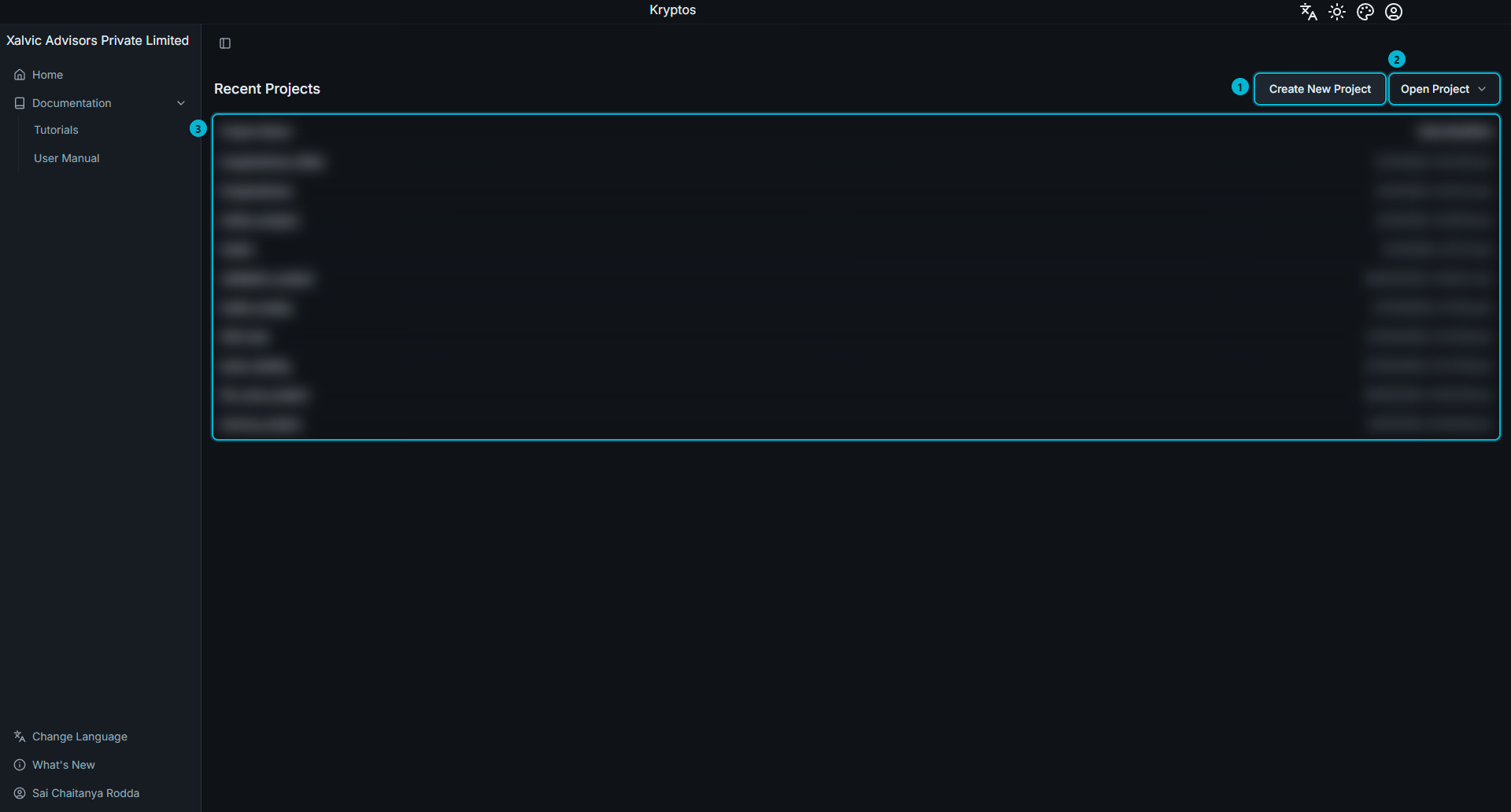
Create New Project — creates a new, empty project and opens it.
Open Project — opens an existing project stored on your computer.
Recent Projects — displays projects previously opened on this computer, with the most recently used projects listed first. The date each project was last modified is also shown. Click a project to reopen it.
Before any project has been opened, the list is replaced by No Projects Found — Open a project to get started.
Kryptos works with one project at a time. Opening or creating another project closes the currently open project. If there are unsaved changes, Kryptos prompts you to save them before closing the current project.
WARNING
A license seat is checked out when you open or create a project, not when you sign in. The seat is checked out as the project opens and released when the project closes.
If your organisation has no available license seats, a project cannot be opened or created. You will already be signed in and viewing the Home screen when this occurs. Closing a project on another machine, or releasing a seat through License Settings, makes a license seat available.
Creating a New Project
Clicking Create New Project opens the project creation form.
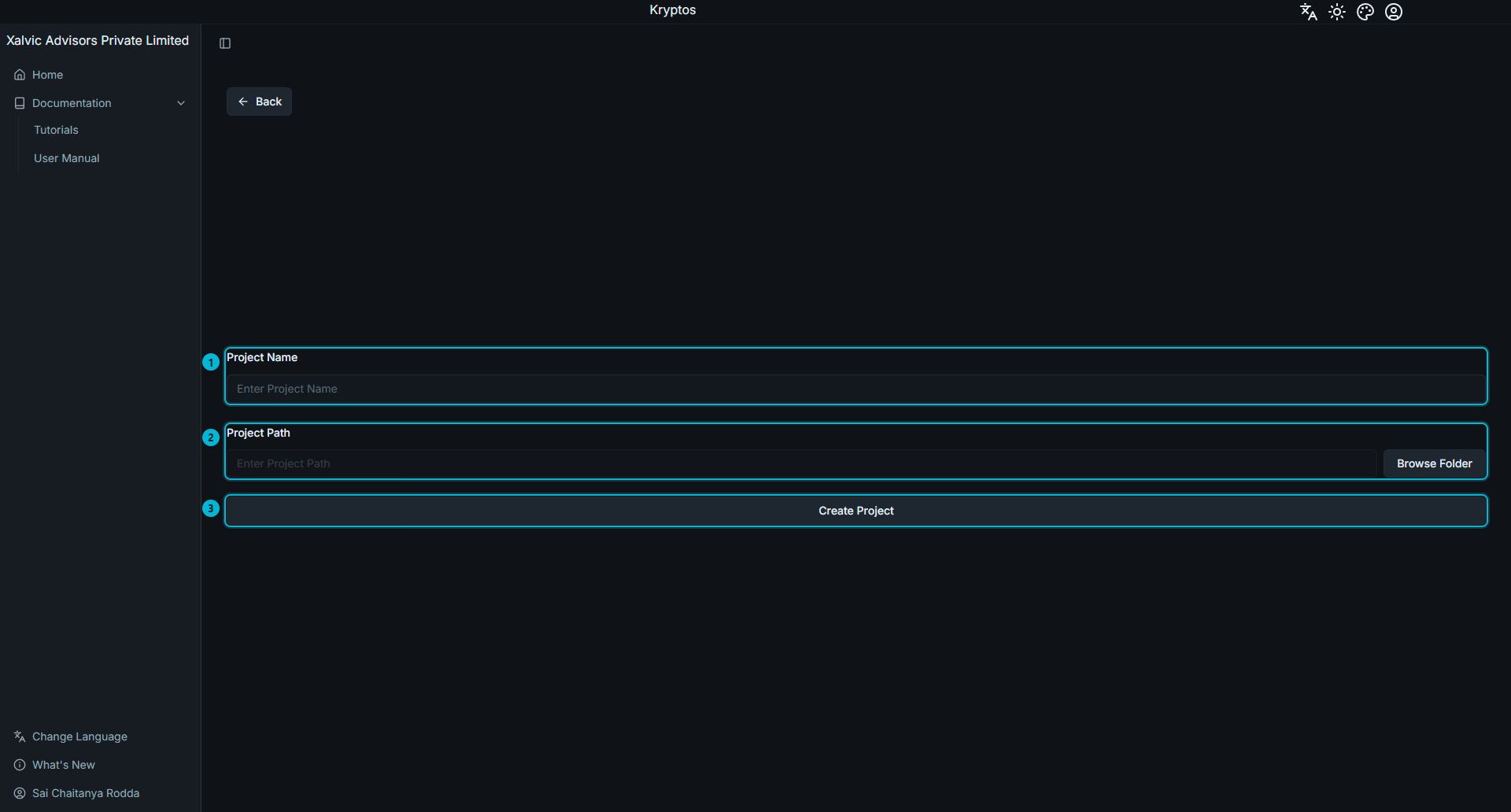
Project Name — this is the name of your project. See the rules below while creating project names.
Project Path — specifies the parent folder in which the project will be created. Kryptos creates a file and a folder of its own inside the selected location, so choose the parent directory rather than an empty folder created specifically for the project.
Create Project — creates the project and opens it.
WARNING
Project names must follow these rules:
- 6 to 50 characters
- Letters, digits, and underscores only — spaces, hyphens, dots, and other special characters are not permitted.
- Must begin with a letter or an underscore — a project name cannot begin with a digit.
For e.g., Unit100_Gas_Gathering is accepted. But Unit 100 Gas Gathering and unit-100-gas-gathering are both rejected.
While creating a project, Kryptos creates a file and a folder with the given project name. Care must be taken to preserve both the file and the folder. If any one of them is deleted or renamed accidently, you will lose your project data.
A project name must also be unique among the projects currently open in Kryptos. If you see "Project … is currently open", close that project first, including in any other Kryptos window currently running on the machine.
Opening an Existing Project
Open Project uses your operating system's standard file picker. Navigate to the project folder and select its .kryptos file to open the project.
Note that the project's actual data is stored in the folder with the same name alongside it. Both the file and the project folder belong together, and moving or renaming one without the other will break the project.
TIP
To send a project to a colleague or create a backup, copy the .kryptos file and the corresponding project folder with the same name.
Opening a project may take a moment depending on the size of the project.
Related
- Geometry & Plot Plan — the first step after creating a new project.
- License Settings — manage license seats and signing out.