Exporting from Navisworks
Kryptos can import Navisworks .nwd and .nwc files directly, so for most projects you do not need this page. The Kryptos Navisworks Exporter is a separate add-on that runs inside Navisworks. Use it only when you want to prepare a customised model in Navisworks and save it as Kryptos files, for example to sort a large model into folders before it reaches Kryptos.
The exporter adds a Kryptos Exporter tab to the Navisworks ribbon. If you do not see the tab, install the add-on first. See Installing the Navisworks exporter.
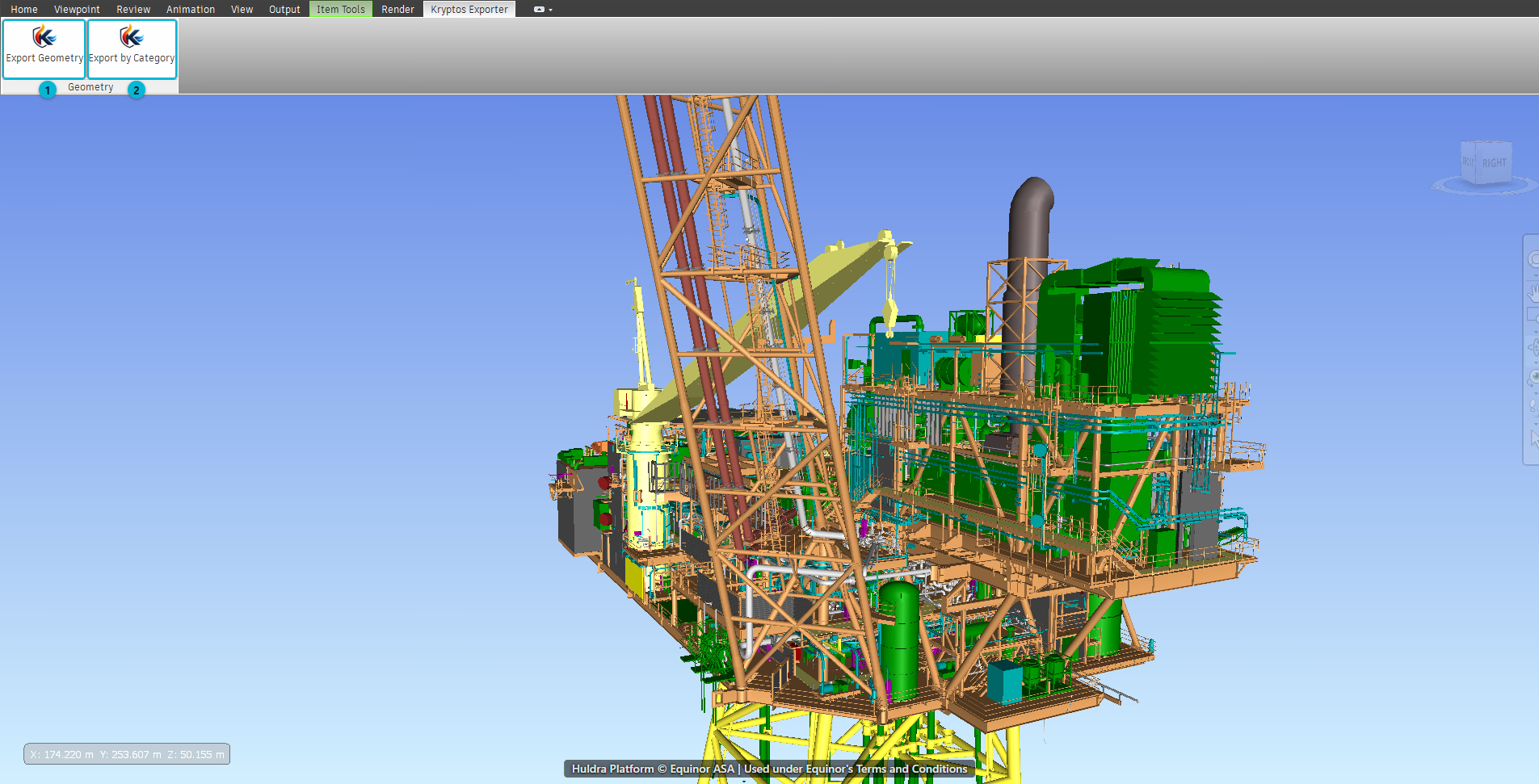
- Export Geometry — saves the whole model as one Kryptos Geometry file (
.kryptosgeo). - Export by Category — sorts the model into one folder for each category, such as piping or structure, and saves a catalogue file (
.kryptcat) that lists them.
TIP
Open the model in Navisworks and check that everything you need is visible and loaded before you export. The exporter works on the model that is open and visible in Navisworks. Hidden elements will not be exported.
Export Geometry
Use this when the whole model should come into Kryptos as one geometry.
- In Navisworks, open the model.
- Click the Kryptos Exporter tab, then click Export Geometry.
- Choose where to save the file and give it a name. The file type is Kryptos Geometry Files (
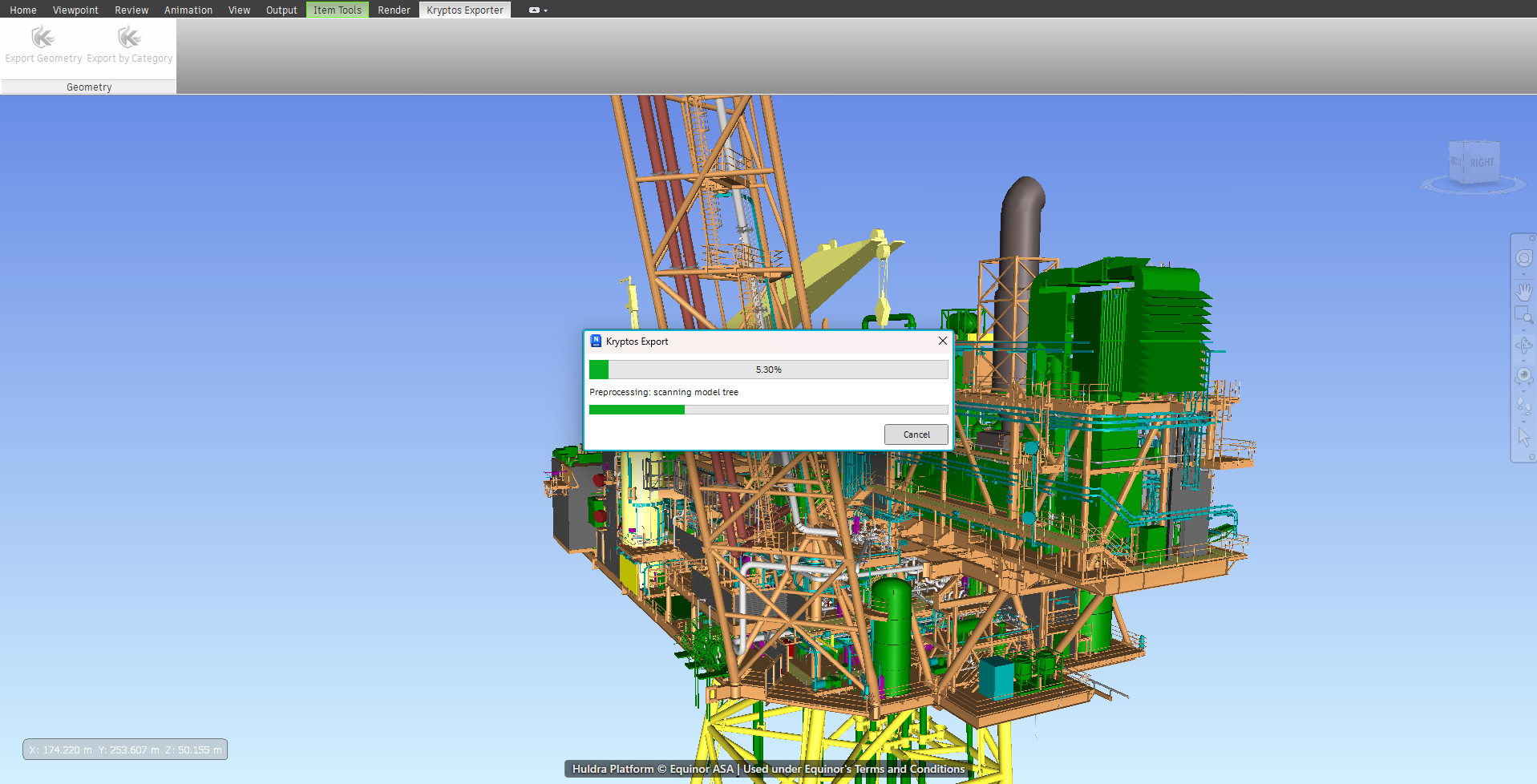
*.kryptosgeo). - A progress bar called Kryptos Export appears. It first scans the model, then exports the geometry. You can cancel at any time. If you cancel, no file is written.
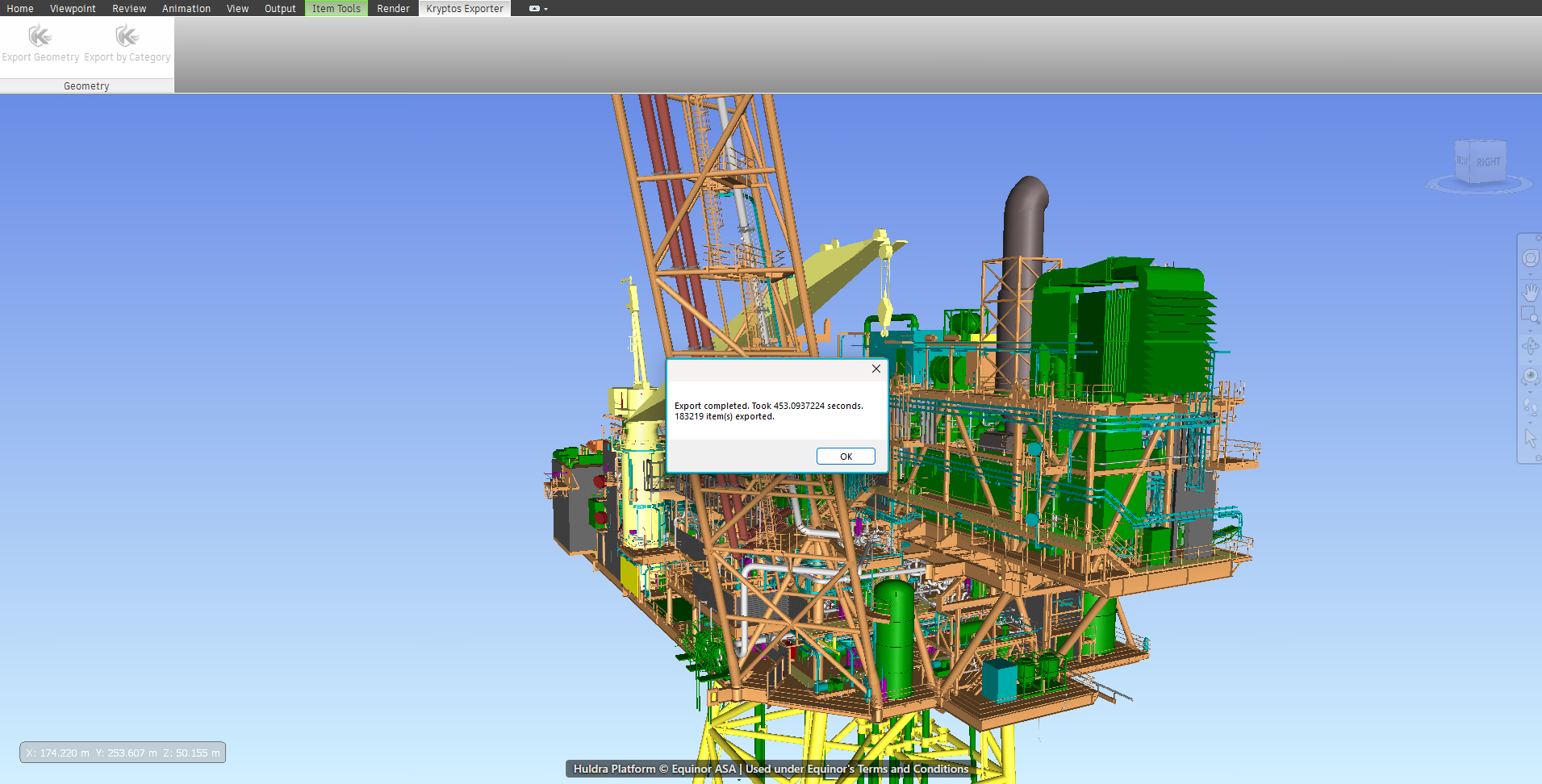
- When the export finishes, a message shows how long it took and how many items were exported.
WARNING
Large models can take a long time to export. Wait for the Export completed message before you close Navisworks.
To bring the file into Kryptos, use Import Geometry as described in Geometry & Plot Plan and choose the .kryptosgeo file.
Export by Category
Use this when a model holds many kinds of items, such as equipment, piping and structure, and you want each kind kept apart. Each category becomes its own folder, which makes it easy to give each one its own tag and colour in Kryptos.
- In Navisworks, open the model.
- Click the Kryptos Exporter tab, then click Export by Category.
- The Export by Category window opens.
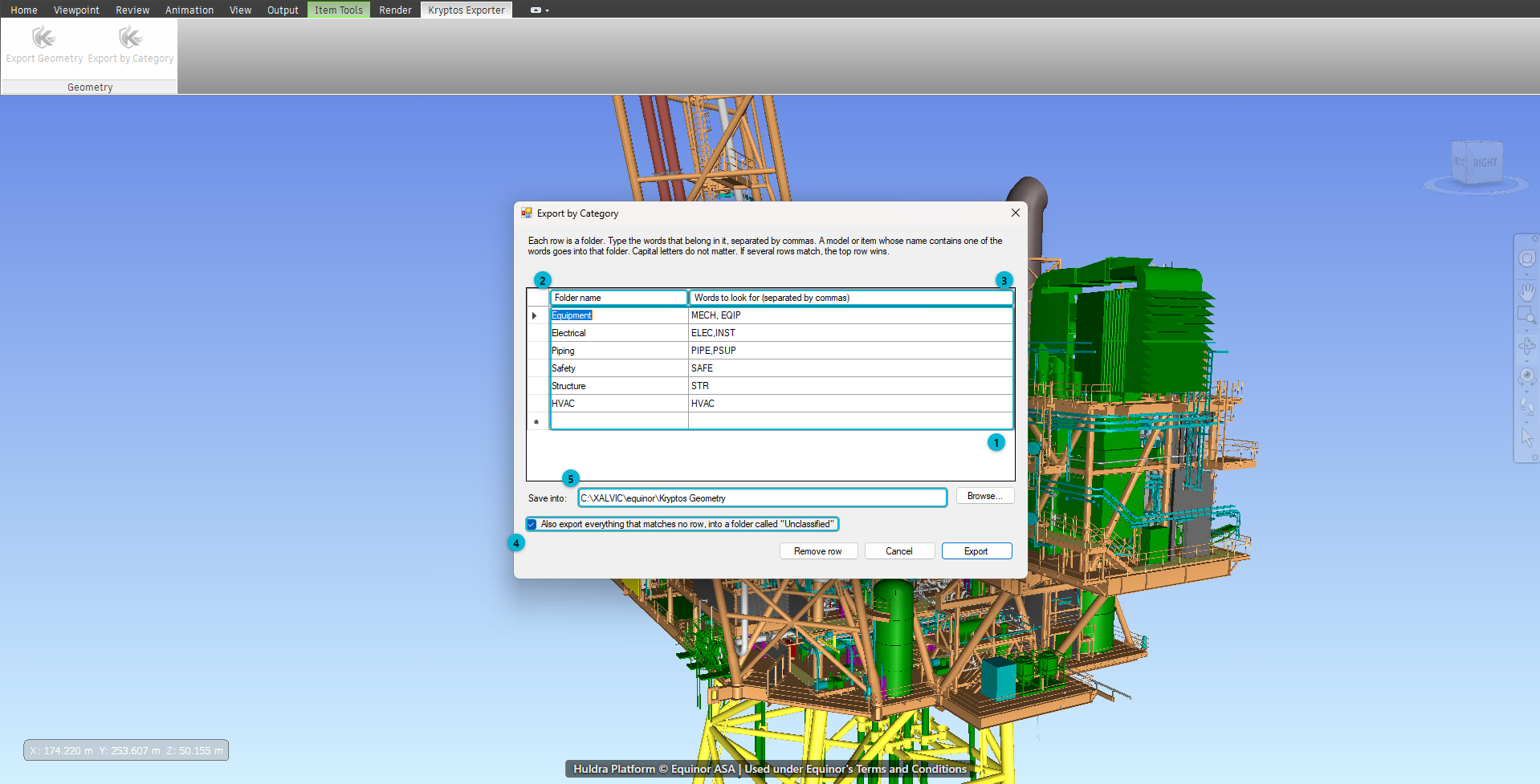
- Rows — each row is a folder that will be created.
- Folder name — the name of the folder, for example
Piping. - Words to look for — the words that belong in this folder. Put a comma between the words. Kryptos checks the names of the items in your model, and the names of the groups and files they sit in. An item that contains one of the words goes into this folder.
- Also export everything that matches no row — keeps the items that match no row, in a folder called Unclassified. Leave it unticked to ignore them.
- Save into — the place where the folders will be saved. Click Browse to choose it.
The window starts with a typical set of rows: Equipment, Piping, Structure, Electrical, Safety and HVAC. Change the words to match the names used in your model. Use Remove row to delete a row you do not need. Kryptos remembers your rows and your save location for next time.
TIP
Look at how your model names its groups before you fill in the words. Model groups are often named with a short code, such as PIPE or STR, and these codes make good words to look for.
- Click Export. If something is missing, a message tells you what to fix. For example, every row that has words also needs a folder name.
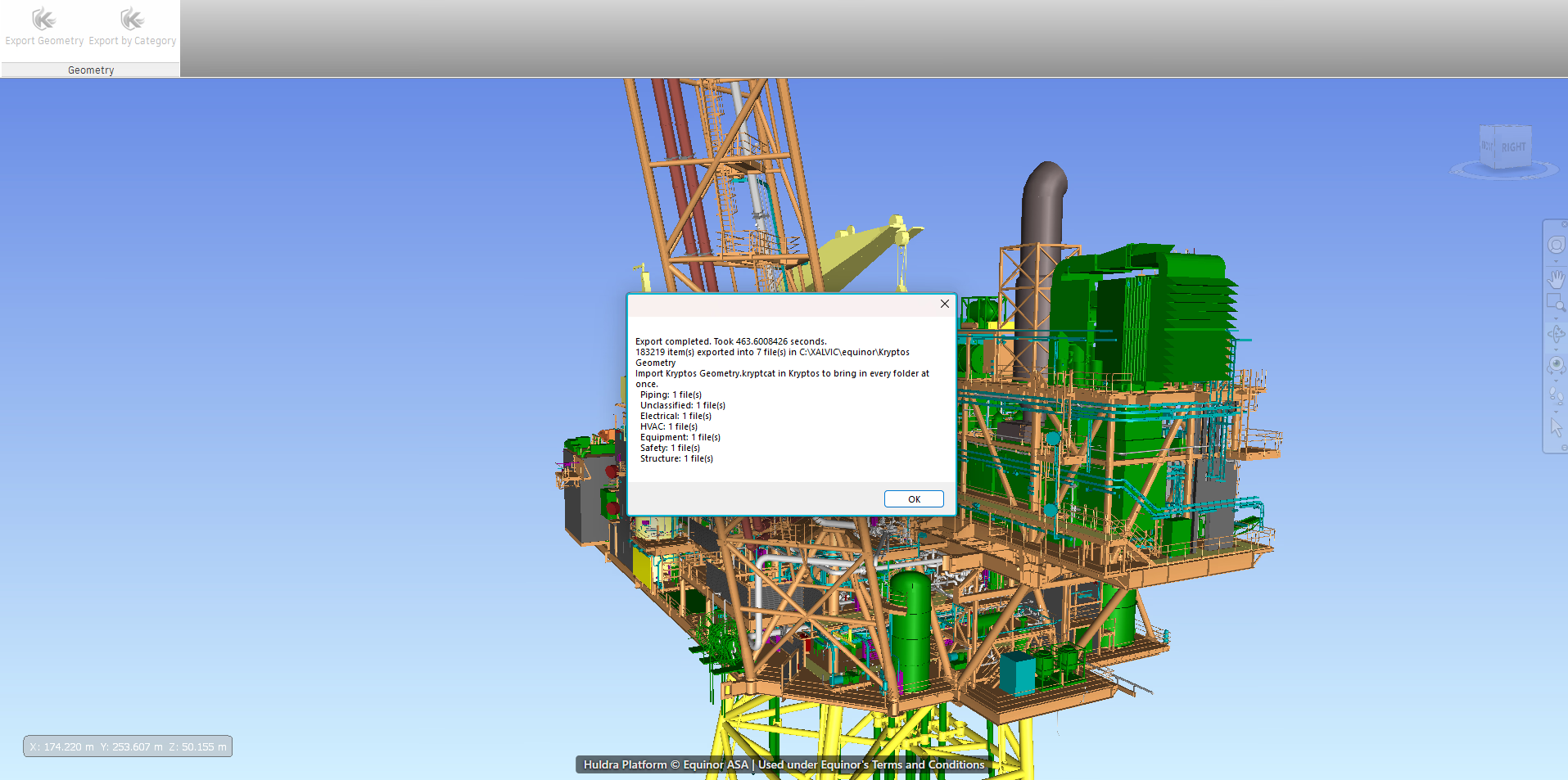
- The Kryptos Export progress bar appears. When it finishes, a message shows how long it took, how many items were exported, and how many files were written.
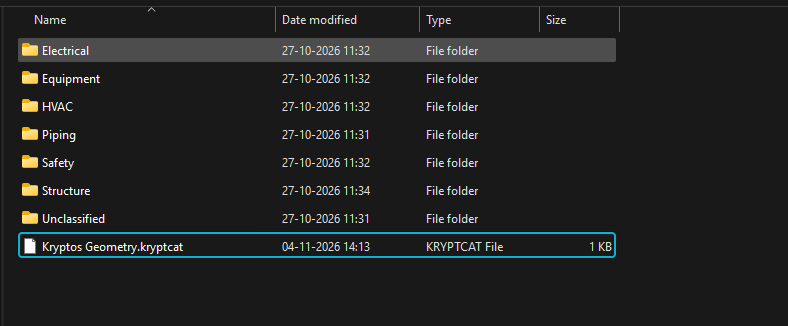
The folders appear in the place you chose. A catalogue file is saved with them, named after the folder you chose and ending in .kryptcat.
WARNING
Keep the catalogue file next to its folders. Kryptos reads the folders from the place where the catalogue file is saved. If you move the catalogue file alone, or move only the folders, the import will fail. Move or share them together.
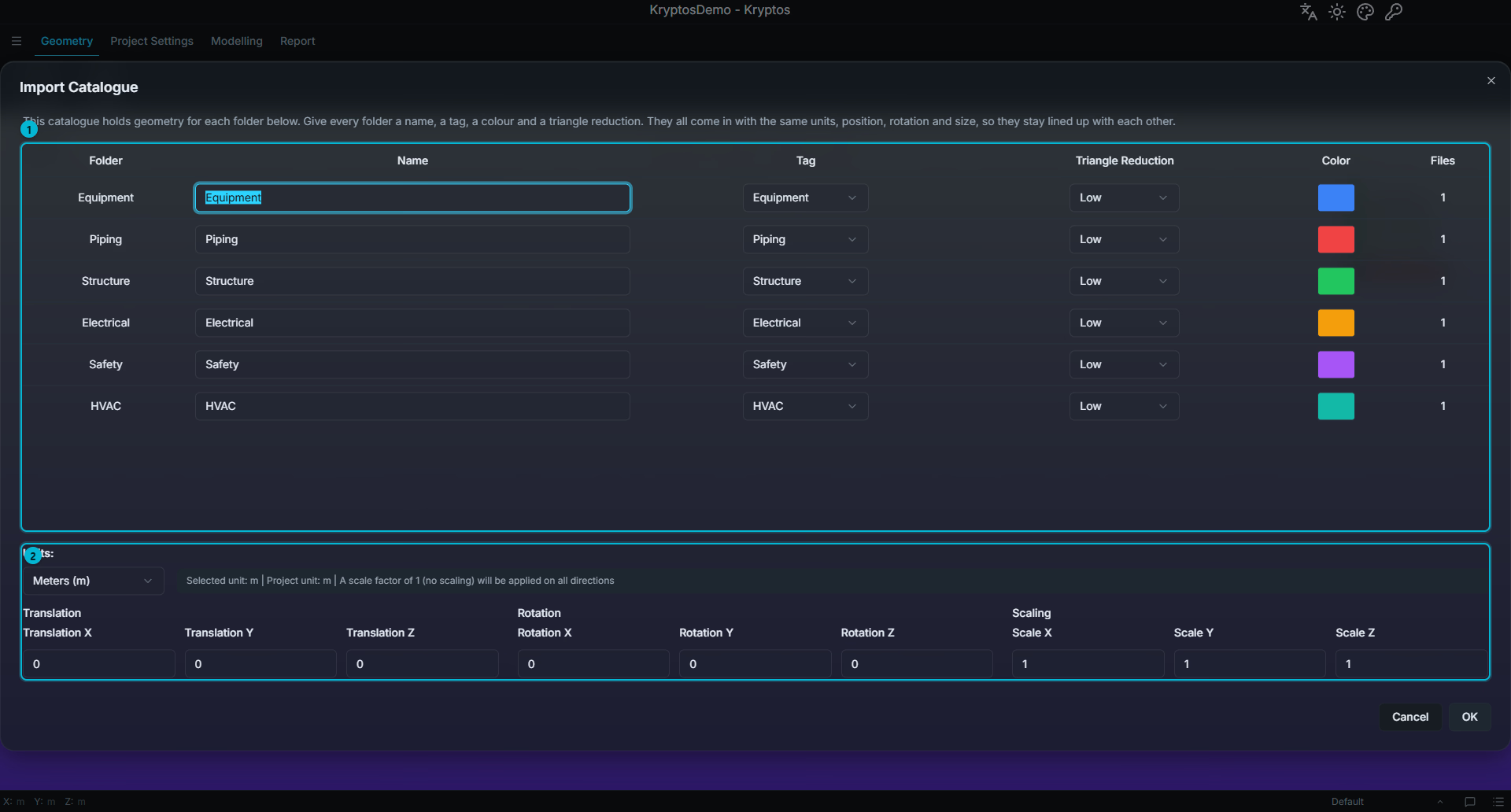
To bring the categories into Kryptos, use Import Geometry and choose the .kryptcat file. Choose it on its own, not together with other files. Kryptos opens the Import Catalogue window, where you give each folder a name, a tag, a colour and a triangle reduction. All the folders come in with the same units, position, rotation and scale, so they stay lined up with each other. For the meaning of each setting, see Geometry & Plot Plan.
If something goes wrong
- Some items could not be exported. The exporter carries on with the rest of the model, so one faulty item does not lose a long export. Details are written to a log file next to the exported file.
- The Kryptos Exporter tab is missing. Close Navisworks fully and open it again. If it is still missing, see Installing the Navisworks exporter.
Related
- Geometry & Plot Plan — importing geometry into Kryptos.
- Installing Kryptos — installing the Navisworks exporter.