Detector Database
Kryptos includes a database of fire and gas detector models from manufacturers. The Detector Database is where you choose which of these models can be used in your project. You can also add models of your own.
Only the models you choose here appear in the Detector lists in Area Settings. Set up the detector models before you begin modelling.
Opening the Detector Database
Open the Modelling tab. Next to Modelling Areas there is a second tab called Detector Database. Click it to open the database.
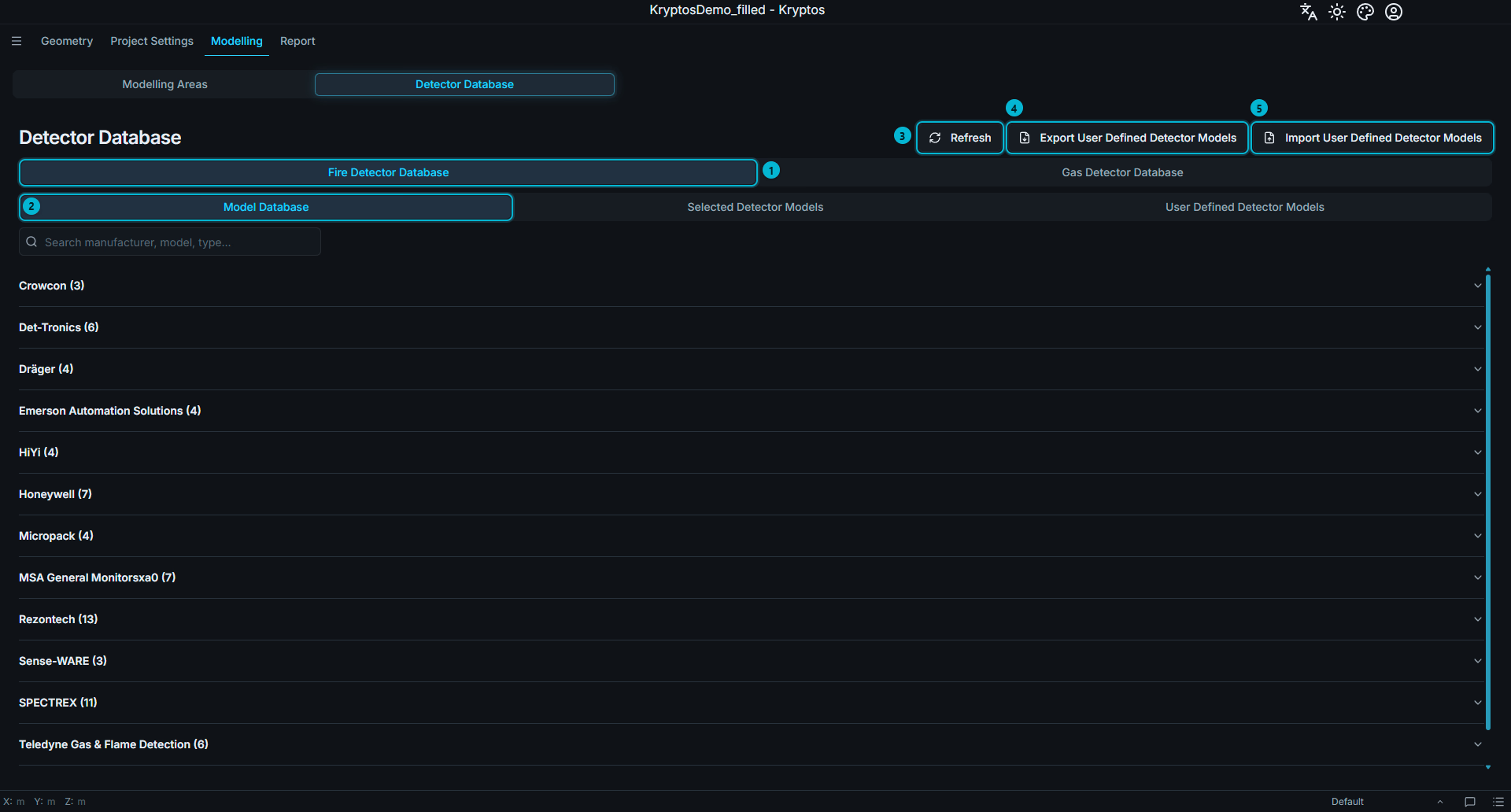
- Fire / Gas tabs — the database has one tab for fire detectors and one for gas detectors. Each tab has its own models and its own lists.
- Model Database, Selected Detector Models and User Defined Detector Models — three lists inside each tab. They are explained below.
- Refresh — reloads the database so that it shows the latest detectors, for example ones added or removed in another Kryptos window.
- Export User Defined Detector Models — saves your own detector models to a file, so you can use them in another project.
- Import User Defined Detector Models — loads detector models from a file saved this way.
Adding Models to the Project
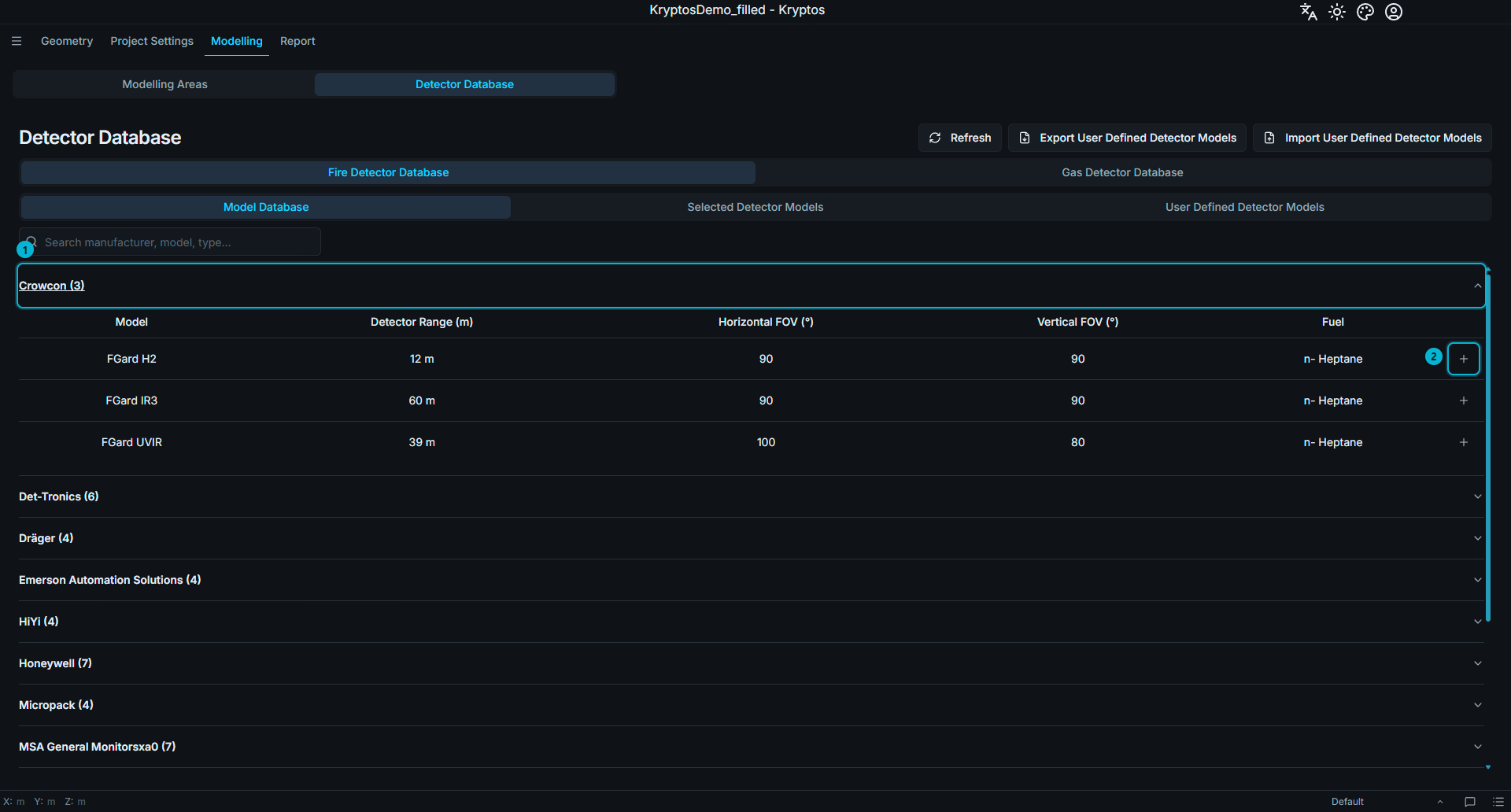
- Manufacturer — click to show or hide its models.
- + button — adds the model to the project.
The Model Database holds the detector models supplied with Kryptos. Use the search bar to find a model by manufacturer, model or type. Click a manufacturer to see its models, then click the + button on a model's row to add it to the project.
Click a row to open the datasheet and read the manufacturer's details before you choose the model.
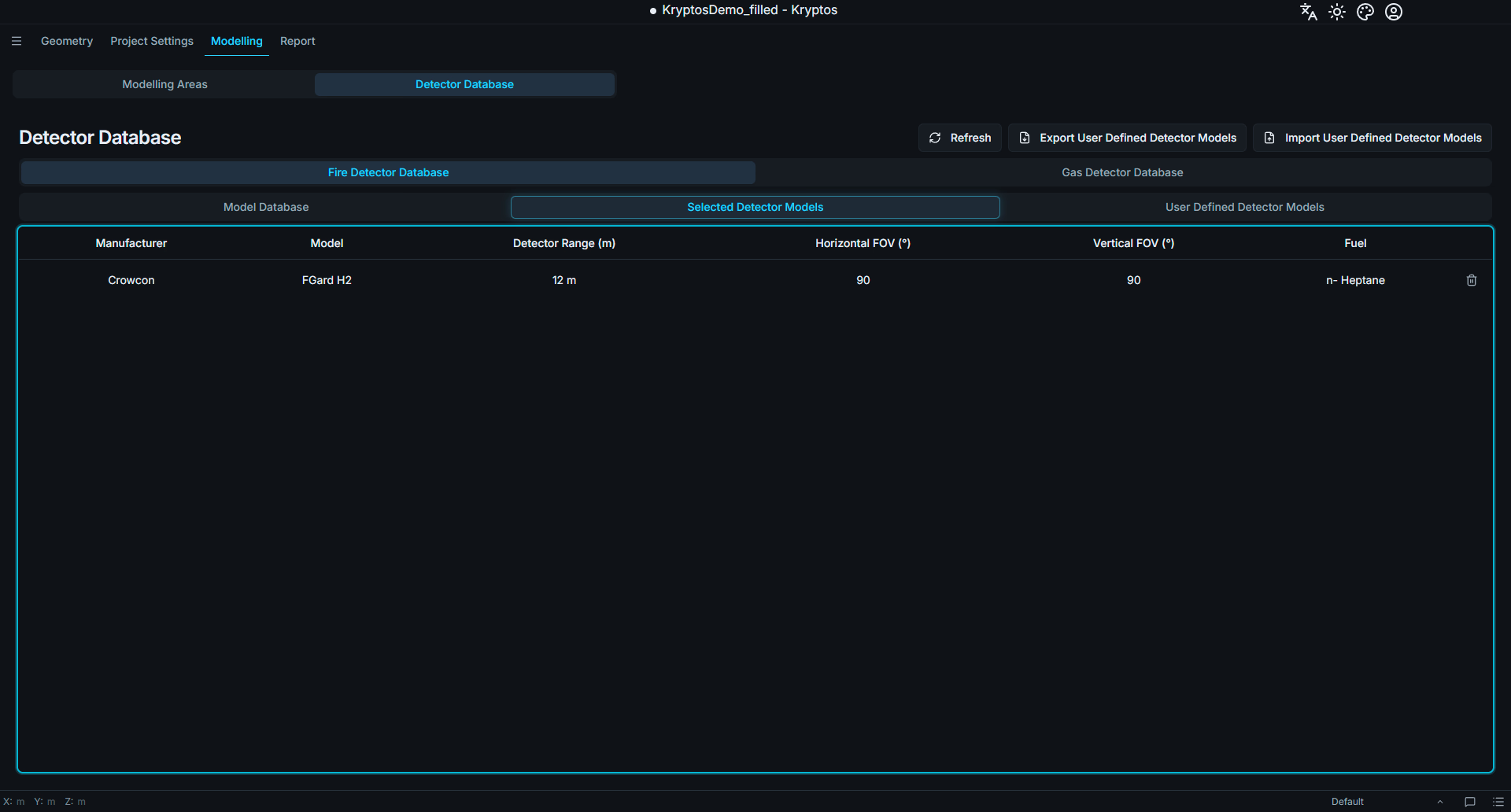
Selected Detector Models lists the models you can use in this project. It holds models chosen from the Model Database and models you added yourself. To take a model out of the project, click the bin button on its row. The − button next to the model in the Model Database does the same.
TIP
Only the models in Selected Detector Models can be chosen elsewhere in the project. For example, the Detector list in Area Settings shows only the fire detector models chosen here.
User Defined Detector Models
Use User Defined Detector Models to add a detector that is not in the Model Database, for example a model that is specific to your organisation.
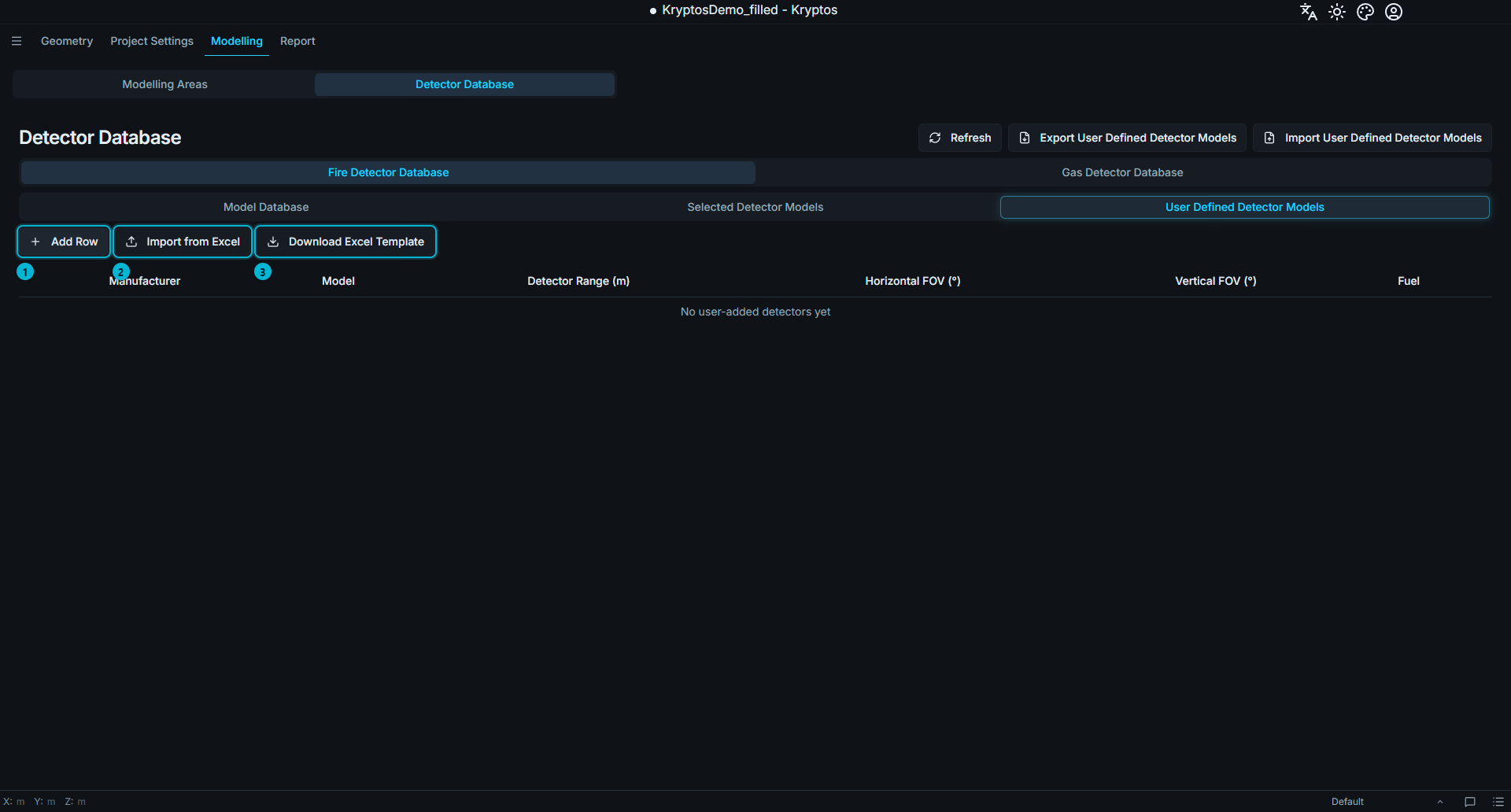
- Add Row — type in the details of a detector model yourself.
- Import from Excel — add detector models from an Excel file.
- Download Excel Template — gives you an Excel file in the format Kryptos expects.
When you add a model by hand, you can also attach its datasheet as a PDF. Tick Add to Model Database to keep the model on this computer, so you can use it in your other projects too.
WARNING
A detector model that an area is using cannot be deleted. Remove the model from every area that uses it first.
Related
- Area Settings — choose the detector for each area.
- Project Settings — project-wide settings.